Transcribe WhatsApp Audio on iPhone/Android Without an App
WhatsApp can transcribe a voice message on the phone itself, one message at a time. What works on iPhone and Android with nothing installed, and where it stops.
In this article
- WhatsApp's built-in transcripts, and where they stop
- On iPhone, dictation without a download
- On Android, the tools already on the phone
- Where every on-phone method breaks down
- The files behind the voice messages
- Transcribe the whole chat in one pass instead
- What no method on this page changes
- The short version
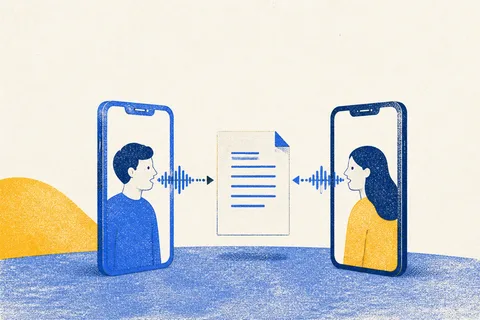
You can transcribe WhatsApp audio on an iPhone or Android without installing anything. WhatsApp itself now has a built-in transcript feature on recent versions, and both phones ship with dictation tools that can be pointed at a voice message. For one message, in a supported language, that is genuinely all you need. The catch appears at message two and grows from there: every on-phone method works one recording at a time, and none of them produces text you can export, search, or hand to someone else.
So this guide does both. First the honest on-phone options, because if you only need to read one voice message before replying, you should not need anything more than what is already on the phone. Then where each option stops, and what to do when the job is a whole chat's worth of audio rather than a single message.
One note on what "without an app" means here. The methods below use WhatsApp itself, the phone's own dictation, or tools that came preinstalled. The one-pass alternative at the end runs in the browser, which keeps the same promise: nothing to install there either.
Transcribe every voice message in this chat at once.
Analyze your chatTranscribe voice messagesSee it all in writingRead a voice message freeWhatsApp's built-in transcripts, and where they stop
The most direct route is the one WhatsApp added itself. On recent versions of the app, voice messages can be transcribed on the phone: open Settings, then Chats, then Voice message transcripts, and turn the feature on. After that, long-press any voice message and tap Transcribe. The text is generated on the device rather than on a server, which is a genuine privacy advantage.
It is worth trying first, and it is worth being clear about the three places it stops.
Language support is short. Transcripts work in a limited set of languages, and the list differs between iPhone and Android. If the voice message is in a language the feature does not cover, the option either fails or never appears at all.
It is strictly per message. Each voice message needs its own long-press. There is no "transcribe this chat" button. Ten voice messages means ten transcripts, read one bubble at a time.
The text stays in the bubble. The transcript is a reading aid, not a document. It is not included when you export the chat, cannot be collected into one file, and cannot be searched across messages. Export the conversation and you get the audio files back, not the transcripts.
If the Transcribe option does not appear at all, check the setting above, update WhatsApp, and consider the language. Old app versions and unsupported languages are the usual reasons.
On iPhone, dictation without a download
If the built-in transcript is unavailable, an iPhone still has two honest tricks.
Keyboard dictation. Open Notes, tap the microphone on the keyboard, and play the voice message out loud on speaker, from a second device or from the same phone. Dictation types what it hears. It works, with caveats: it punctuates by guesswork, it pauses when the speaker pauses, and it gives up after a stretch, so a three-minute voice message becomes several rounds of babysitting.
Voice Memos. On recent iOS versions, Voice Memos generates a transcript of what it records. Start a recording, play the voice message on speaker, stop, and read the transcript. Same idea, one extra step, and you keep an audio copy of the playback.
Notice what both tricks have in common: the phone is not reading the audio file. It is listening to the room through the microphone while the file plays. Background noise, low playback volume and speaker distortion all land in the transcript. You are transcribing a re-recording, and it shows in the accuracy.
On Android, the tools already on the phone
Android's options have the same shape.
Live Transcribe. Preinstalled on Pixel phones and many others as an accessibility tool, it converts anything the microphone hears into on-screen text. Play the voice message on speaker next to it and read along. The text can be copied out, one playback at a time.
The Recorder app. On Pixels, the Recorder app transcribes what it records. Record while the voice message plays, then read the transcript, the same move as the Voice Memos trick above.
Voice typing. Gboard's microphone button turns any text field into a dictation target. Open a note, tap the mic, play the audio on speaker.
The microphone caveat applies to all three. And on both platforms the arithmetic is the real limit: each of these handles one voice message per playback, in real time. A chat with forty voice messages is forty playbacks, plus the copying, plus the cleanup.
Where every on-phone method breaks down
For one message, any of the options above is fine. The problems start when the job changes shape.
Bulk. On-phone methods cost you roughly the audio's duration per message, times every message. An hour of accumulated voice messages is an afternoon of tapping, and the temptation to skip the ones that seem unimportant is exactly how the one that mattered gets missed.
Export. None of these methods produces a file. The native transcript lives inside the bubble; the dictation tricks leave fragments scattered across notes. There is no document at the end that contains the chat, in order, with the spoken parts as text.
Search. You cannot search audio. If what you need is the voice message where a price was agreed, the on-phone answer is to re-listen until you find it.
Evidence. A pasted fragment in a notes app has no timestamp, no sender, and no connection to the conversation around it. If the voice messages matter because of a dispute, that context is the difference between a quote someone can rely on and a loose sentence. WhatsApp voice messages as evidence covers what a usable record looks like.
The files behind the voice messages
There is a reason the workarounds above all involve playing audio into a microphone instead of opening the file: WhatsApp voice messages are Opus audio inside an OGG container. When you export a chat with media, the recordings arrive as .opus files with names like PTT-20260712-WA0007.opus, and .ogg, .m4a or .mp3 appear depending on the phone. Most phone tools do not open them, and most built-in transcription features do not accept a file at all.
That format is not a dead end; it is the doorway. Once the files are out of WhatsApp, a tool that reads the format transcribes them from the actual audio rather than from a re-recording. If you are holding loose voice message files rather than a whole chat, OGG to text handles exactly that format.
Transcribe the whole chat in one pass instead
When the job is a chat rather than a message, the durable path is to take the conversation out of WhatsApp once and transcribe everything in a single run.
Export the chat first. Open it in WhatsApp, tap the contact or group name (in a group, the three dots at the top right), choose Export Chat, and select Attach Media on iPhone or Include Media on Android. This choice is the one that matters: without media, every recording is silently dropped and nothing warns you. On iPhone the export size limit is smaller, so check which dates a long chat's export reaches. WhatsApp cannot export a chosen period; the preview lets you pick the period to analyze after uploading.
Then upload the .zip to WhatsApp audio to text. The export is read in the browser, the voice messages are found and counted before anything is sent, and every recording is transcribed in one pass, in the language it was spoken in. Each transcript is placed on the conversation timeline at the moment the original was sent, so a spoken answer sits under the typed question it replied to, and the whole conversation becomes one searchable document.
If what you want at the end is text you can search and quote rather than a summary, exporting WhatsApp voice messages as searchable text goes deeper on what that output looks like.
What no method on this page changes
A few limits apply to every option here, the browser one included.
Transcription quality depends on the audio. The engine behind the one-pass route is AI transcription models, which do best on clear, single-speaker recordings; background noise, crosstalk and very quiet audio degrade any transcript, and the microphone tricks degrade it twice. Read the text against the recording for anything you intend to rely on.
A machine transcript is not a certified transcript. If a formal proceeding requires certification or a sworn translation, that is a separate professional step, and machine transcription is how you find out which recordings are worth that expense.
And none of this is legal advice. If the voice messages are headed into a dispute, what to preserve and how to present it is a question for a lawyer.
The short version
For one voice message in a supported language, use WhatsApp's own transcript: Settings, then Chats, then Voice message transcripts, then long-press the message and tap Transcribe. If that is unavailable, the phone's dictation or a preinstalled transcriber can type out what it hears through the microphone, one playback at a time.
The moment the job is a whole chat, stop working per message. Export the conversation with media included, keep the .zip, and transcribe every voice message in one pass in the browser, with each transcript placed at its original timestamp. The on-phone tricks answer what this one message says. The export answers what was said.
Ready to read your voice messages?
Upload your export and every audio becomes searchable, timestamped text inside the full conversation.